How to Accept Secure Orders and Payments Directly on WhatsApp (UPI orders for Indian merchants)
In modern customer service, responsiveness is the new currency. But when it comes to conversational commerce, the biggest friction point is checkout redirection. Sending a customer away from their chat window to an external mobile browser to complete a payment often leads to abandoned carts.
According to industry benchmarks, businesses shifting from external redirection links to native, in-app checkout experiences on WhatsApp see up to a 3x increase in conversion rates and a 40% drop in cart abandonment.
For Indian merchants, this friction runs even deeper. Most customer service teams on WhatsApp are stuck in a manual, inefficient loop: sending a UPI VPA string, asking the customer to open an external app like GPay or PhonePe to pay, and then waiting for the customer to send a screenshot of the UPI payment confirmation before manually verifying and processing the order. This process is slow, error-prone, and impossible to scale.
With Peach, you can automate this entire cycle. By leveraging WhatsApp’s native payment support built on official Meta APIs, your customers in India can browse, order, and pay securely using their preferred UPI apps or payment methods without ever leaving the chat thread. No redirection, no manual screenshot verification.
The Conversational Commerce Advantage (India Stack)
Traditional manual UPI flows require multiple friction points:
- Guest asks to book a room upgrade or spa service.
- The front desk manually sends their UPI VPA (e.g., grandorahotels@axisbank).
- The guest leaves WhatsApp, opens GPay, inputs the amount, and pays.
- The guest takes a screenshot of the receipt and sends it back to WhatsApp.
- A staff member manually checks the hotel’s bank account or merchant dashboard to verify the funds before confirming the upgrade.
Peach replaces this manual loop with a single, automated, and secure UPI intent flow. Integrated directly with Razorpay and PayU, Peach triggers a native payment overlay right inside WhatsApp, instantly notifying your system the second a transaction succeeds.
Step 1: Configure Your Payment Gateway in Peach
Before your AI agent can process payments for Grandora Hotels, you must link your active Indian payment gateway to your Peach account.
- Navigate to your Account Settings in Peach.
- Select the WhatsApp Payments tab and click Create New Configuration.
- Input your hotel’s business details, including your Merchant Category Code (MCC) and purpose code.
- The Admin Delegation Link: Peach will generate a secure connection link. If you are not the direct administrator of your hotel’s Razorpay/PayU or Meta Business Manager account, you can share this link with your finance or IT admin team.
- Once your admin opens the link, authorizes the gateway, and confirms the connection, the status will automatically update to active in your Peach dashboard.
[!TIP] Don’t have admin access? The delegation link can be generated and emailed directly to your financial officer. They can complete the Razorpay or PayU onboarding in 2 minutes without needing full access to your Peach dashboard.
🔒 Trust & Security Callout: Is WhatsApp Checkout Secure for My Customers?
Absolutely. Customers never type card numbers, passwords, or UPI PINs directly into the WhatsApp chat thread. When they click “Pay Now,” Peach triggers a secure, tokenized overlay managed entirely by Razorpay or PayU.
The checkout button securely invokes their standard biometric-secured UPI apps (like GPay, PhonePe, or Paytm) natively on their device. Neither Peach nor Meta ever store, see, or transmit your guest’s sensitive financial credentials.
Step 2: Set Up Mandatory Transactional Templates
To comply with Meta’s official guidelines and ensure a structured checkout experience, you need to configure three utility message templates. These templates serve as the official status notifications sent to your guests during their purchase journey:
- Order Details Template: Sent when an order is first created. This acts as the guest’s digital invoice, detailing the items (e.g., “Late Checkout Upgrade”), pricing, and the native “Pay Now” button.
- Order Completed Template: Triggered automatically the moment your payment gateway confirms a successful transaction.
- Order Canceled Template: Sent if an order is canceled manually or expires.
You can create or update these templates directly in your Meta Business Suite, and Peach will use them dynamically during the checkout flow to keep your guests updated.
Step 3: Input Your Products and Enable the Order Tool
With your payment gateway and templates configured, you now need to give your AI agent access to your services and manually grant it permission to transact.
- Add Your Products: Go to the Products page in Peach. For Grandora Hotels, enter services guests can buy in-stay:
- Late Checkout Fee: ₹4,000
- Continental Breakfast Delivery: ₹2,000
- Grandora Signature Spa Package: ₹9,999
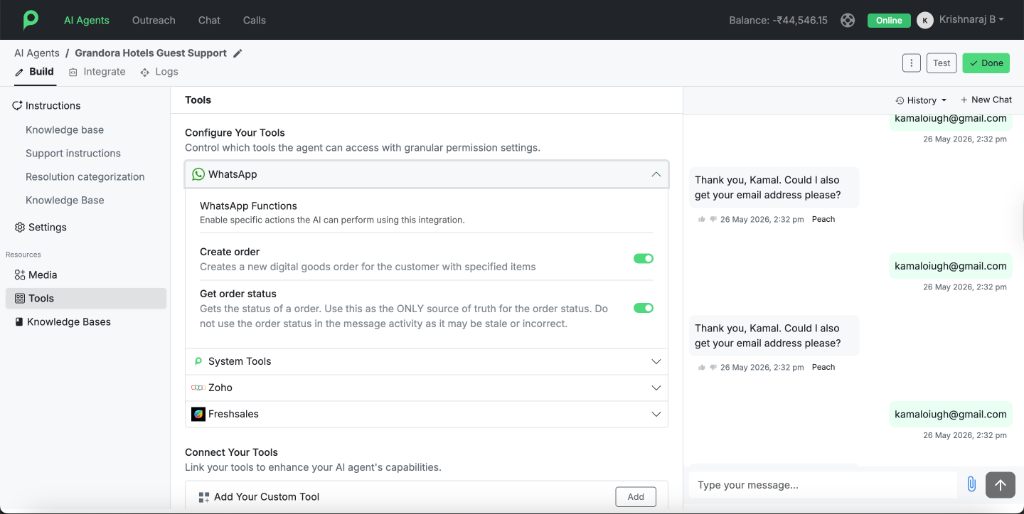
- Enable the WhatsApp Order Tool (Manual Action Required): Navigate to the AI Agents tab, open your Grandora Concierge builder, go to the Tools section, and toggle on the WhatsApp Order Tool.
[!IMPORTANT] Important Security Note: Enabling tools within Peach is a security-first manual process. It cannot be automated via the Peach MCP. This safeguard ensures that an LLM cannot self-authorize transactional capabilities without direct human approval.
Step 4: Configure the Commerce Logic via Conversation
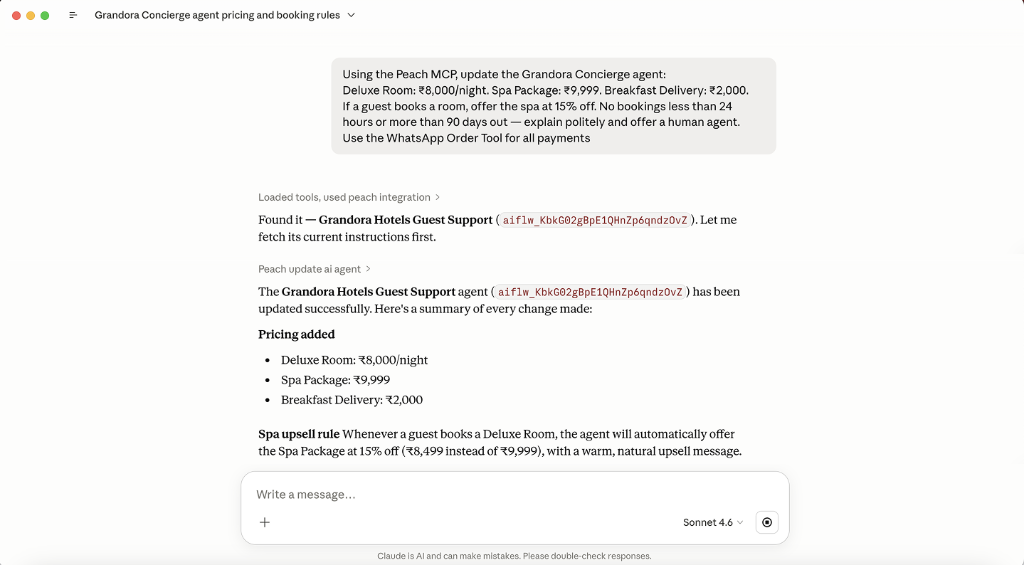
Once the Order Tool has been manually enabled in the dashboard, you can use the Peach MCP to configure how your agent sells these services through simple conversation.
Because the tool is active, your preferred AI model can now programmatically link your product catalog, apply dynamic discount logic, enforce booking restrictions, and route everything to your payment configuration.
We will pass detailed room upgrade options, specific bundle discounts, scheduling rules, and bulk booking protocols all within a single conversational prompt.
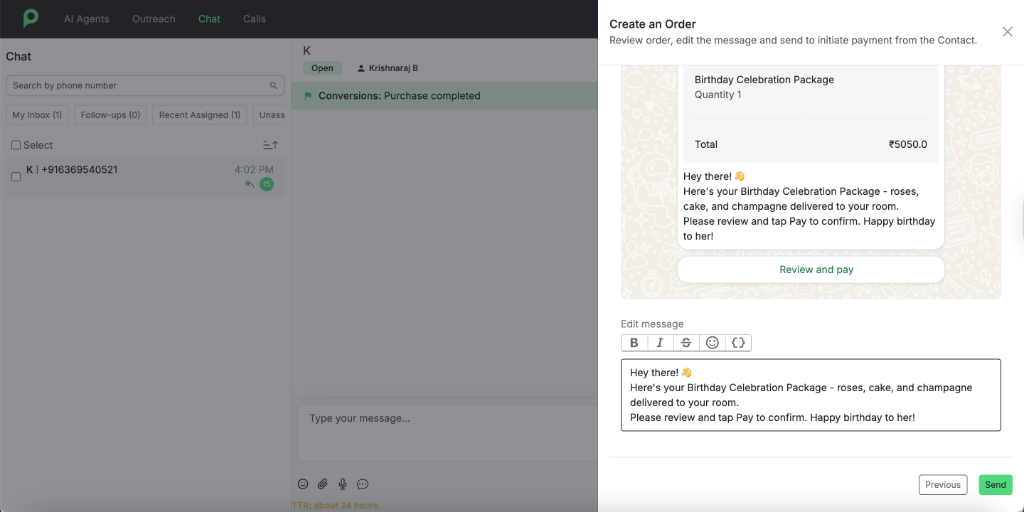
Hybrid Operations: Creating Orders Manually in Chat
While automation handles the bulk of transactional requests, complex sales or custom guest requests often benefit from a human touch.
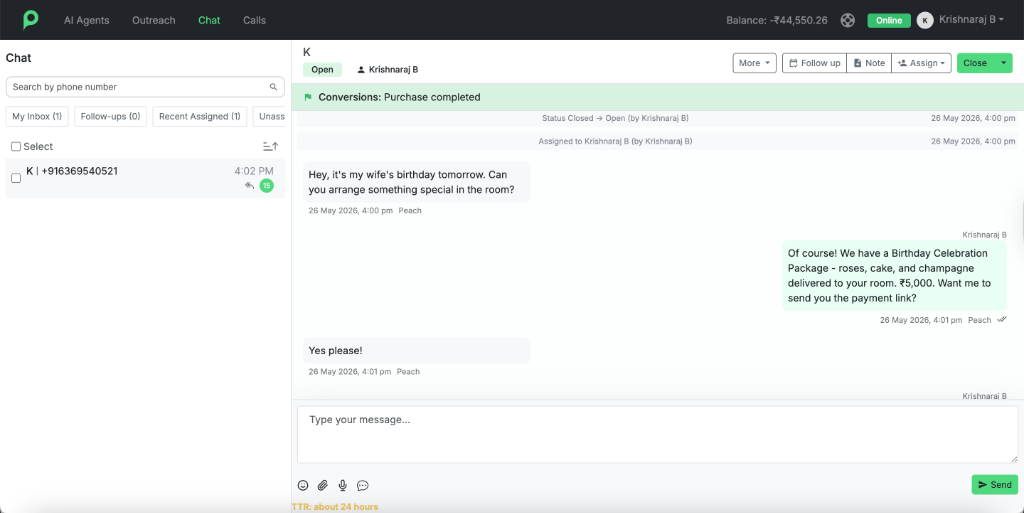
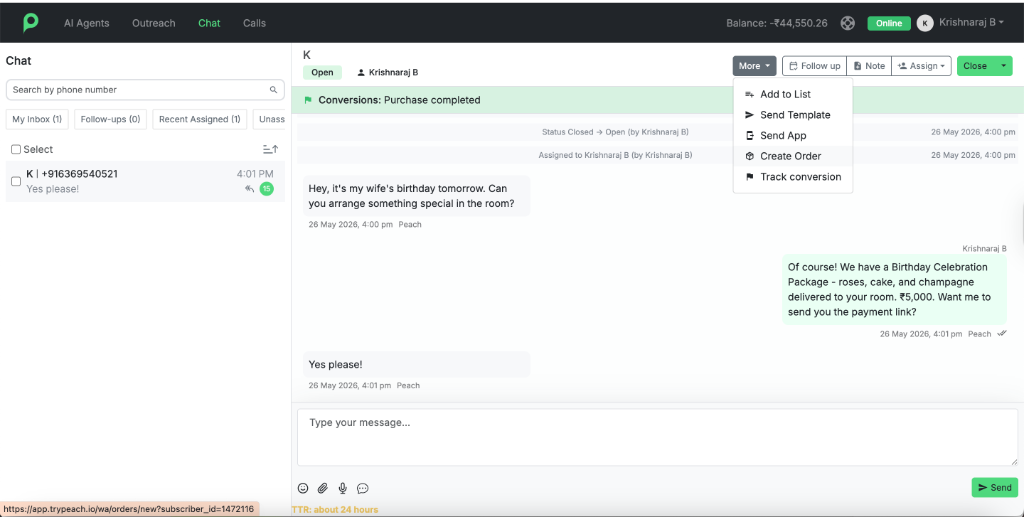
Peach ensures your front-desk team can seamlessly assist when needed. At any point during a live conversation, a human team member can step in and use the Peach Shared Inbox to construct and send customized order details directly to the guest’s WhatsApp screen.
Instead of typing card details or copying/pasting UPI IDs, the customer simply clicks the secure payment button inside WhatsApp to invoke their favorite UPI app (GPay, PhonePe, Paytm). The second the transaction completes, your internal sales/PMS logs update automatically.
Post-Purchase Magic: Closing the Loop
A great customer experience doesn’t end when the transaction finishes. Peach handles the entire post-purchase workflow automatically:
- Instant Confirmation: The exact millisecond your payment gateway (Razorpay or PayU) settles the funds, Peach verifies the payment programmatically. Your guest instantly receives an automated, beautiful Order Completed confirmation template with their digital invoice, completely eliminating the need for manual screenshot sharing.
- Handling Exceptions & Refunds: Operational realities mean cancellations happen. If a guest cancels a booking or service, your front-office team can initiate a refund directly through your connected Razorpay or PayU dashboard. Once triggered, Peach automatically detects the state change, marks the order as refunded, and fires the Order Canceled template to the customer’s WhatsApp so they stay fully informed.
What’s Next?
With your AI agent successfully processing native WhatsApp payments, you have a fully functional commerce engine running 24/7.
In the next part of this series, we will cover:
- Abandoned Cart Recovery: Using your agent to automatically re-engage guests who initiated an order (like a spa booking) but didn’t complete the payment.
- Property Management System (PMS) Routing: Syncing payment transactions directly back to your PMS or CRM to automate room status and financial reporting.
Frequently Asked Questions
Is WhatsApp Checkout secure for my customers?
Absolutely. Customers never type card numbers, passwords, or PINs into the WhatsApp chat thread. When they click the checkout button, WhatsApp opens a secure, tokenized overlay managed directly by Razorpay or PayU. Guests authorize payments directly using their standard biometric-secured UPI apps (like GPay, PhonePe, or Paytm). Neither Peach nor Meta ever see or store sensitive financial credentials.
Can my customer service team send payment requests manually?
Yes. Through Peach’s collaborative Shared Inbox, human agents can manually create and send order requests directly to customers during live chats, providing a powerful hybrid sales environment.
How does this eliminate manual screenshot verification?
Because Peach is natively integrated with your payment gateway (Razorpay or PayU), the status of each payment is verified programmatically. The moment the gateway authorizes the transaction, Peach updates the chat thread and triggers the “Order Completed” template automatically. Your team no longer has to ask for or manually double-check payment screenshots.
Prerequisites
- Peach Account
- Razorpay or PayU Merchant Account
- WhatsApp Business Platform (API) Connected
- Meta Business Suite Credentials